Demographic History
- Demographic Sections: This will display the sections the Demographic page is composed of.
- All or Category: This allows you to view the Demographic in full without Categories as shown above.
- Demographic History: This section will display previous Demographics submitted and their status.
- Action dropdown: This allows users to Edit, Delete, Extract, View and Print a Demographic.
Enrollment
The Enrollment section provides information on the Patients/Clients enrollment.
Add/Edit Demographic
- Submission Reason: This section allows you to select the reason from a dropdown of pre loaded options for submitting a Demographic.
- Demographic/Submission Date: This Section allows you to submit the date of the submission. Once these two sections are added you can hit enter to open the rest of the Demographic note.
The rest of the Demographic is composed of two section that require each field to be added according to what applies to the Patient /Client.
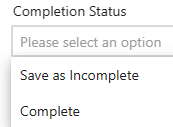
The final section has the Completion status which allows a user to either Save the Demo completely or Save it as incomplete for the user to return later and complete.